

Microsoft has unveiled Windows 10, the latest version of Windows operating system for desktops, laptops, tablets and smartphones. Windows 10 is aimed at doing away with the quirky features of Windows 8 and providing a unified platform that pleases both the desktop and touch screen users.
Here is a list of 10 must know features of Windows 10 that will entice you to upgrade your current version of Windows.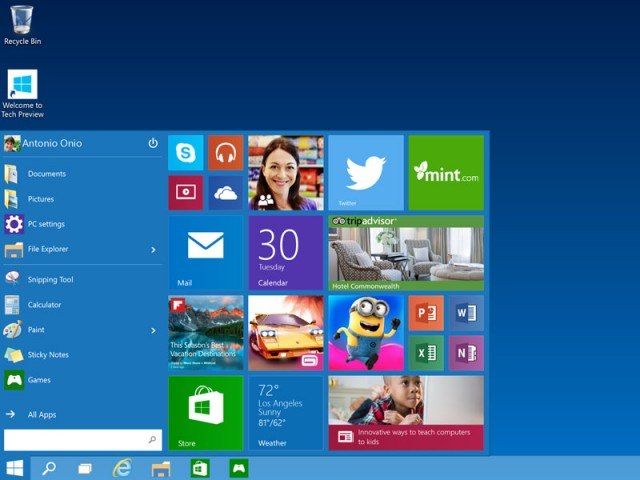 The tiled interface of Windows 8 has also been retained along with the start menu. In windows 10, you can quickly access popular apps such as mails, weather, finance, maps etc from the start menu. Microsoft has tried to address the problem by providing a feature that will satisfy both desktop and touch screen users.
In Windows 8, the “modern” apps available in Windows store opened in full screen mode. Many users found it really inconvenient to switch between apps. In Windows 10, these apps have been renamed as “universal apps” and they can be windowed like any other normal app.
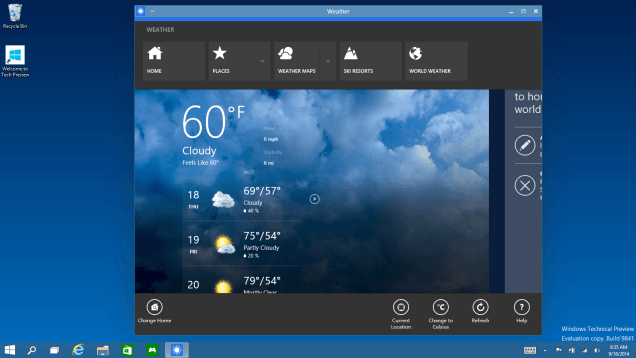 The traditional desktop interface of Windows is regaining prominence in the latest version. Microsoft has tried to retain the conventional style by tweaking the interface to suit the touch screen users rather than going in for complete overhaul.
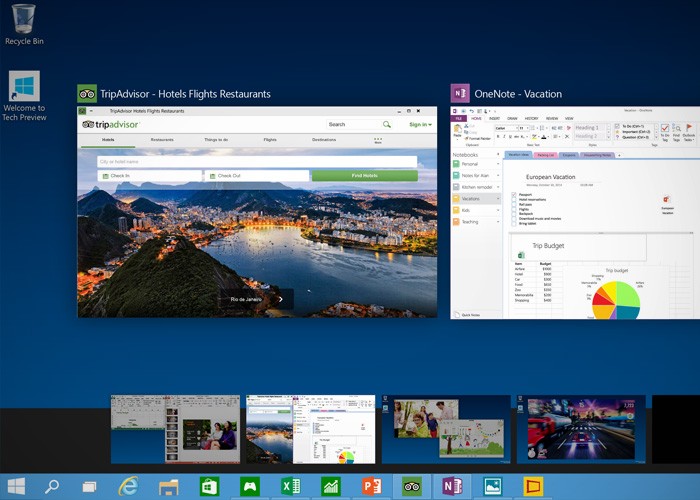 A new “Task View” button is available in the task bar. You can launch the task view interface by clicking this button which will bring up all your open windows on virtual desktops that you have created. When you launch the task view for the first time, you will be prompted with “Add a desktop” option which will allow you to create multiple desktops.
With multiple desktops, this is a cool new feature that will enhance the user experience. The snap assist will be extremely useful for those users who use a tablet as it will be easy to switch between applications and scroll content.
In Windows 10, you can add the Recycle Bin icon to the task bar and the start menu. You no longer have to minimize all your open windows to access the Recycle Bin. It might appear like a minor tweak but a helpful change that is sure to enhance a user’s experience.
It is now official; the Windows 10 start menu is resizable. You can adjust the size of your start menu to fit the left side of your window or shrink it to a strip. This feature will be quite useful for tablet users who have to view in display screens of varying sizes. The ability to adjust the size of the start menu renders more flexibility.
The charms bar might undergo few minor tweaks before the release of the final version to suit both the desktop and touch users.
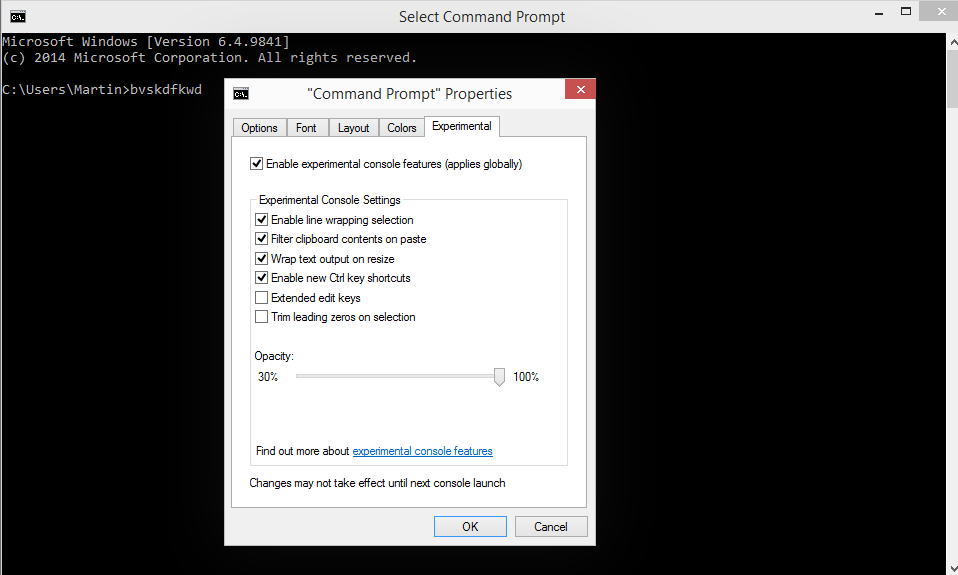
Windows 10 has an updated command prompt that supports proper text selection and pasting a directory with Ctrl + V. We know it was long overdue and Microsoft has finally done it.
Windows 10 supports native text selection and line wraps providing great relief to users. You can paste text in the command prompt without using the traditional context menu as it now supports Ctrl + V option.
In earlier versions of Windows, when you launch the Explorer Window, you will find a list of drives and libraries. In Windows 10, the explorer window has a new “Home” section which shows frequently accessed folders and recent files.
It also shows any location that you have designated as Favorites. The home section is the default landing page when you launch Windows Explorer in Windows 10. This feature is quite useful to quickly access frequently accessed files.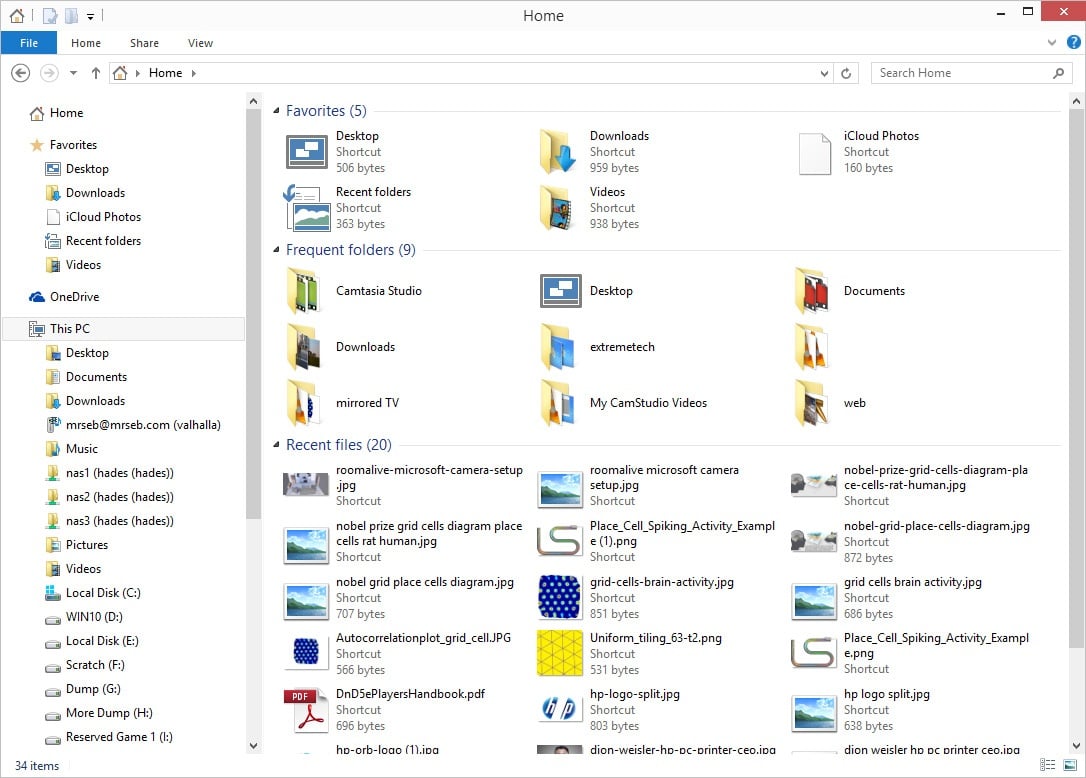
Here is a list of 10 must know features of Windows 10 that will entice you to upgrade your current version of Windows.
1. Start Menu is Back
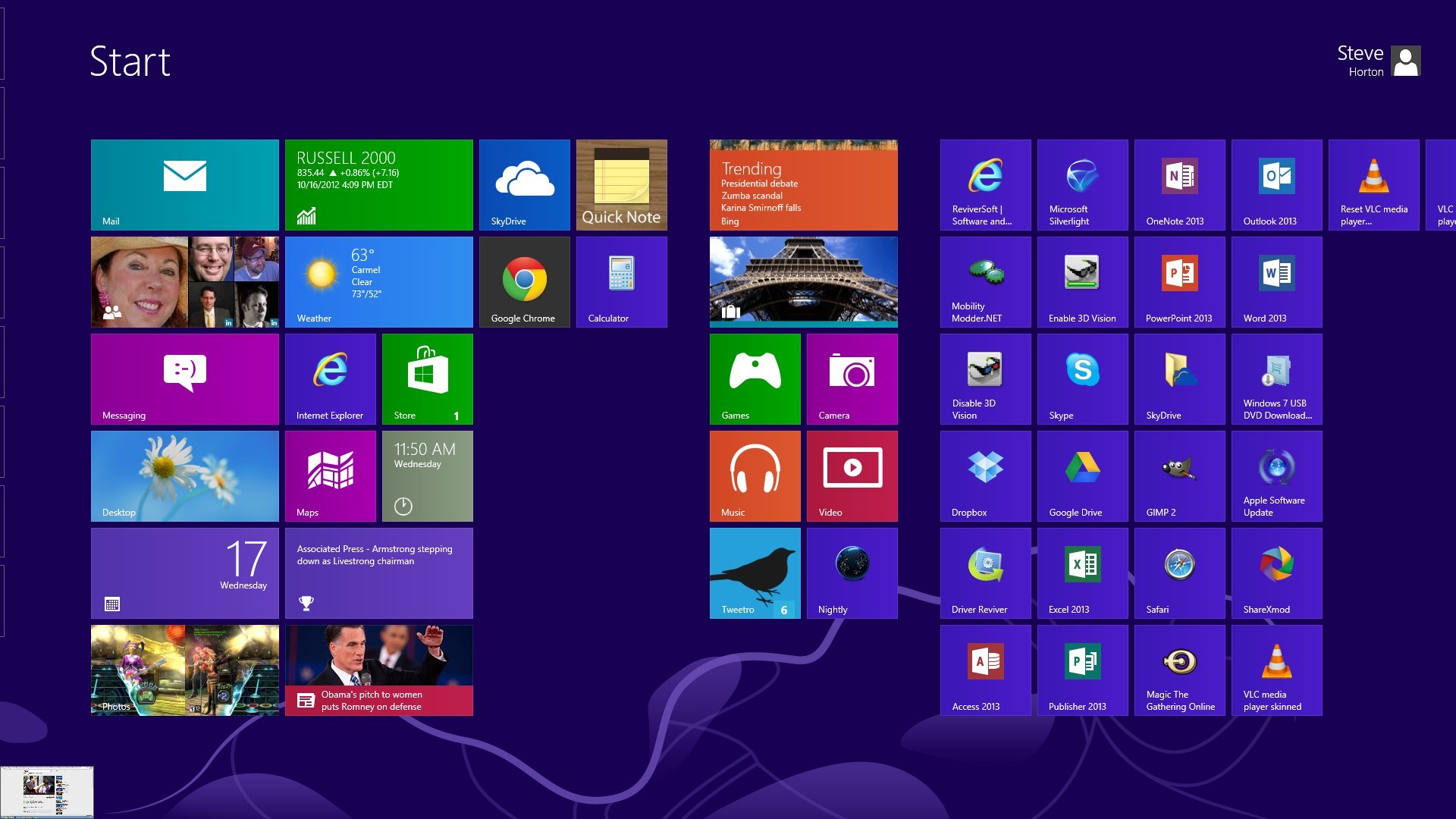
Window 8 users can sigh a relief as the erstwhile start menu is back in Windows 10. Many desktop users found it difficult to navigate through programs without the start menu in Windows 8, and hence Microsoft has brought back the start menu.
The tiled interface of Windows 8 has also been retained along with the start menu. In windows 10, you can quickly access popular apps such as mails, weather, finance, maps etc from the start menu. Microsoft has tried to address the problem by providing a feature that will satisfy both desktop and touch screen users.
2. Continuum
Continuum is a new feature in Windows 10, which will detect whether the computer is being used as a desktop with attached keyboard or as a tablet with touch-screen feature. Windows 10 operating system can switch to more touch-friendly user interface when the keyboard is detached. On machines like the Surface Pro, this is a handy feature that provides flexibility to the user.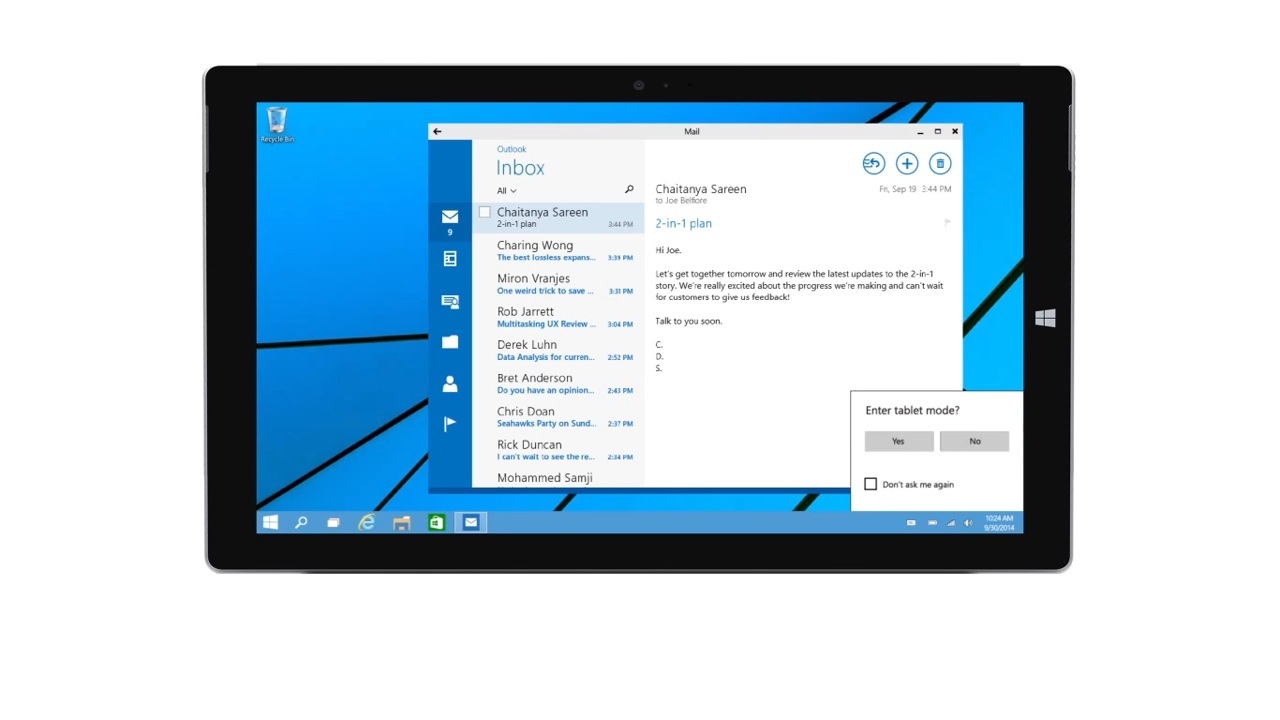 3. Universal Apps In A Window
In Windows 8, the “modern” apps available in Windows store opened in full screen mode. Many users found it really inconvenient to switch between apps. In Windows 10, these apps have been renamed as “universal apps” and they can be windowed like any other normal app.
The traditional desktop interface of Windows is regaining prominence in the latest version. Microsoft has tried to retain the conventional style by tweaking the interface to suit the touch screen users rather than going in for complete overhaul.
4. Multiple Desktops with Enhanced Multitasking
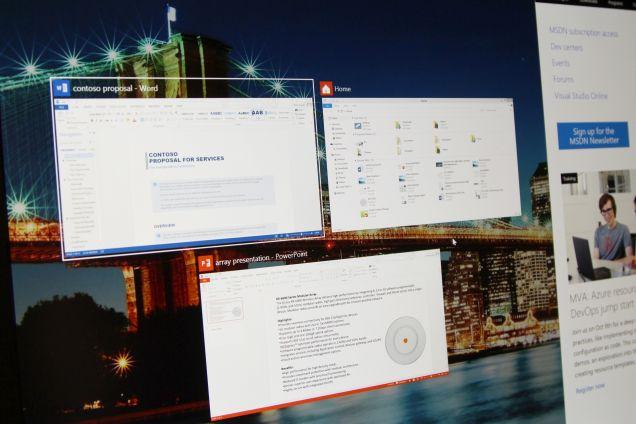
Microsoft is calling its multitasking feature as “Task View” where you will able to view all your open windows in one place. You can also create multiple desktops which will enable users to organize their apps better.
A new “Task View” button is available in the task bar. You can launch the task view interface by clicking this button which will bring up all your open windows on virtual desktops that you have created. When you launch the task view for the first time, you will be prompted with “Add a desktop” option which will allow you to create multiple desktops.
5. Snap Assist
The new multiple virtual desktops feature is further improved by the presence of snapping feature. With this snapping feature, users can now resize windows to fit any part of the screen. It is also possible to place windows side-by-side.With multiple desktops, this is a cool new feature that will enhance the user experience. The snap assist will be extremely useful for those users who use a tablet as it will be easy to switch between applications and scroll content.
 6. Pin Recycle Bin To The Task Bar
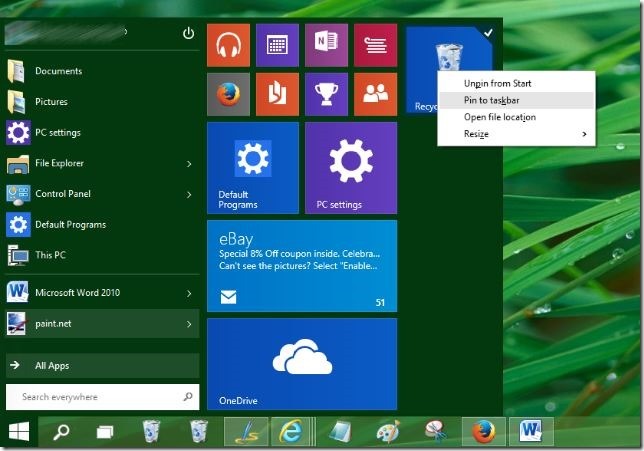
In Windows 10, you can add the Recycle Bin icon to the task bar and the start menu. You no longer have to minimize all your open windows to access the Recycle Bin. It might appear like a minor tweak but a helpful change that is sure to enhance a user’s experience.
 7. Resizable Start Menu
It is now official; the Windows 10 start menu is resizable. You can adjust the size of your start menu to fit the left side of your window or shrink it to a strip. This feature will be quite useful for tablet users who have to view in display screens of varying sizes. The ability to adjust the size of the start menu renders more flexibility.
8. Charms Bar Stays
There were widespread rumors that the charms bar will be dropped in Windows 10. But, the technical preview still has a charms bar. Several Windows 8 desktop users have found the charms bar pretty annoying but Microsoft is not ditching the charms bar yet.The charms bar might undergo few minor tweaks before the release of the final version to suit both the desktop and touch users.
 9. Updated Command Prompt
Windows 10 has an updated command prompt that supports proper text selection and pasting a directory with Ctrl + V. We know it was long overdue and Microsoft has finally done it.Windows 10 supports native text selection and line wraps providing great relief to users. You can paste text in the command prompt without using the traditional context menu as it now supports Ctrl + V option.
 10. Explorer Has A New Home
In earlier versions of Windows, when you launch the Explorer Window, you will find a list of drives and libraries. In Windows 10, the explorer window has a new “Home” section which shows frequently accessed folders and recent files.It also shows any location that you have designated as Favorites. The home section is the default landing page when you launch Windows Explorer in Windows 10. This feature is quite useful to quickly access frequently accessed files.


