

Outlook hints
While studying and teaching productivity habits, I've noticed that many people use Microsoft Outlook for their e-mail and calendar, but have no idea that this tool has many useful features built in. Here's five hints that could improve your productivity when using Outlook.1. Public Holidays
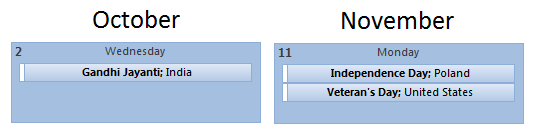
If you don't want to miss public holidays, Outlook can automatically add them to your calendar and it has nearly 100 different locations to choose from!You will not forget that October 2nd is Gandhi Jayanti in India while November 11th is Veteran's Day in United States and Independence Day in Poland.
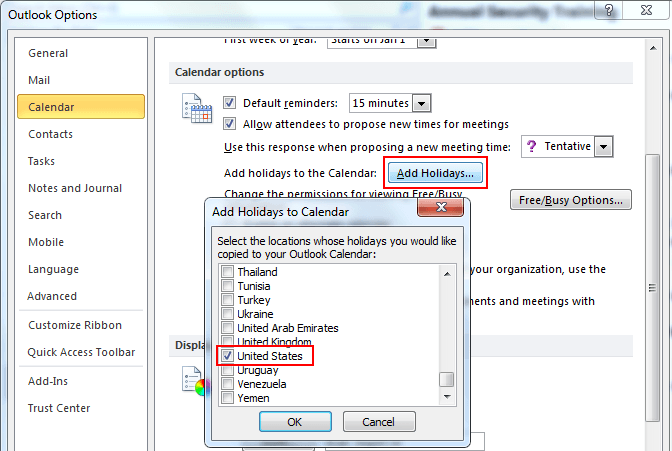
 To enable this, simply go to: Options (File - Options) - Calendar - Add Holidays, and choose the countries that you are working with.
 They are added as All Day Events, so you can freely set reminders, apply colors and mark yourself as, Out of Office.
2. Two Time Zones
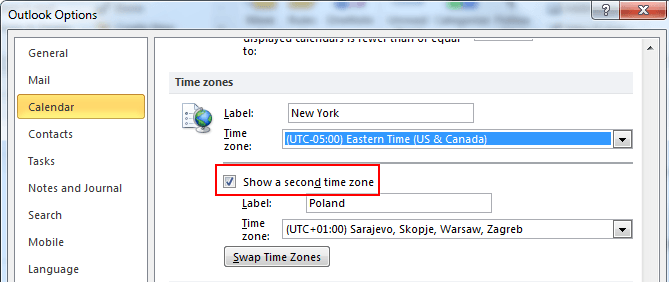
When you are working across multiple time zones, before you schedule any meeting it's important to know the time on the other side to avoid setting up a meeting that might be too early or too late. Instead of fumbling around Google trying to figure it out, Outlook can help you by showing two time zones at the same time.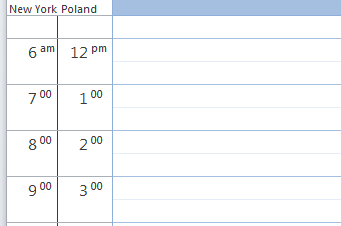 To enable it, simply go to: Options - Calendar - Time zones - Show a second time zone.
3. Automatic Colors
Your email and calendar can automatically apply colors to your emails and meetings based on pre-defined rules. For example, emails sent to you, when you are the only person on the "To" line, can be colored red. To do that, simply choose: View - View Settings - Conditional Formatting (or Automatic Formatting), and you can add a simple rule as shown below: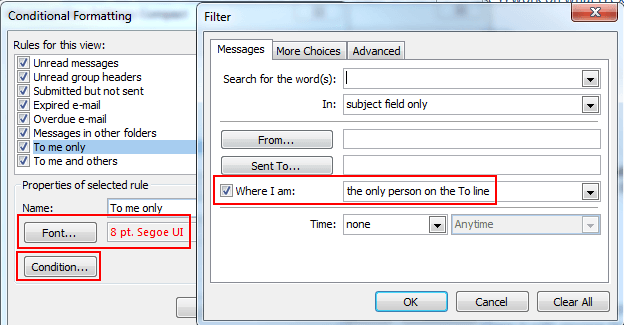 Your calendar and email have separate set of rules, but they are accessed the same way.
4. Search Function
A lot of people have used the search mechanism that's available in Outlook but many people do not know how to use it effectively.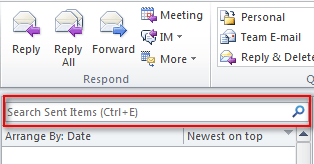 There is a quick introduction how you could do this. It is a powerful mechanism that can save you hours and it's definitely worth learning!
5. Desktop Alert
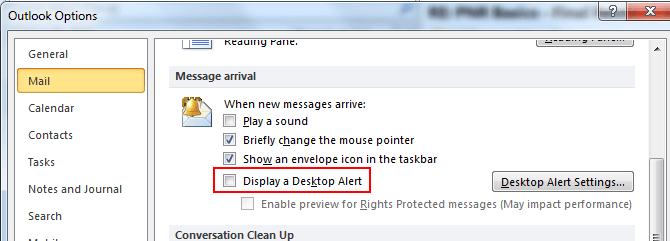
Your brain is unable to do two things at the same time effectively and every context switch costly. However, I still see many people using Desktop Alert, a distracting function that alerts you every time you receive a new email. This alert can make it hard to focus on your tasks and prevent you from working efficiently. I strongly suggest switching this off and reading more about the Pomodoro Technique.To disable Desktop Alert in Outlook, simply go to: Options - Mail - disable "Display a Desktop Alert" option.
6. Manual Mark as Read
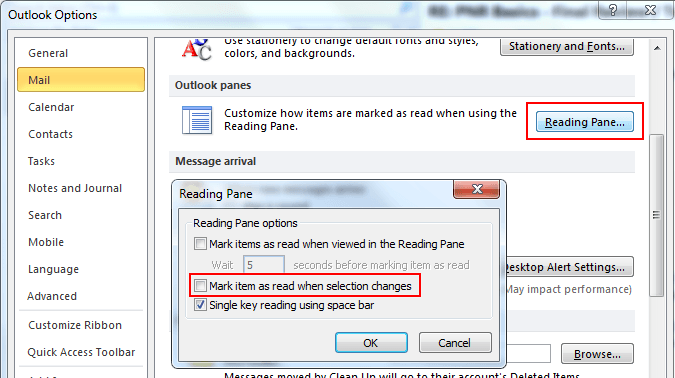
By default, Outlook marks items as read when your selection changes. Often times, you can get lost in what you did or did not read which can be really annoying, because you want to keep track of the things you've already processed. I strongly recommend disabling that feature by going to: Options - Mail - Reading Pane - disable "Mark item as read when selection changes".When you are done and want to manually mark the item as read, use Ctrl+Q.
7. Sharing Calendars
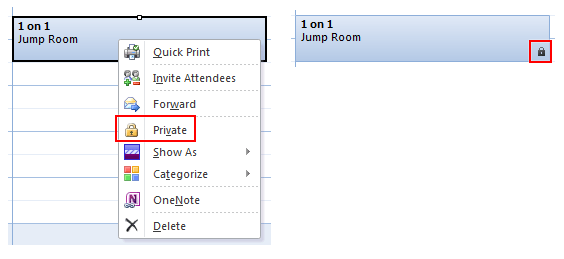
When you are working in a team, especially when you are not sitting close to each other, scheduling a meeting can be hard. When choosing a time, you can only see if someone is busy or not, but you will not see any meeting details. This can be solved by sharing your Outlook calendar. You may ask the whole team to do this.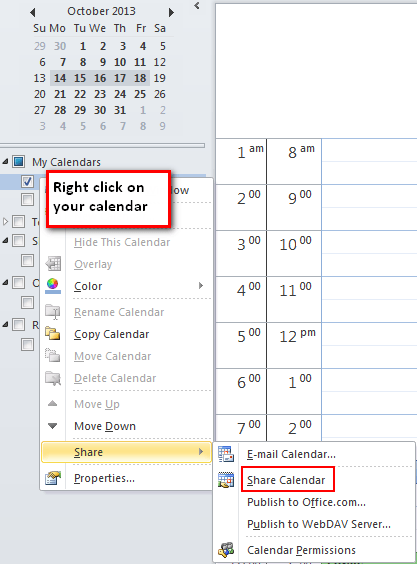 After your calendar was shared, everyone will be able to access all the meetings details you have in it. If you want to prevent it for showing certain meetings and events, simply use "Private" flag and only you will be able to access it.
8. Keeping a Declined Meeting
Sometimes you want to "decline" a meeting, but still have it in your calendar. To quickly solve this problem, you may copy&paste this meeting (Ctrl+C, Ctrl+V), decline the original meeting and keep the copy.Summary
When used effectively, Microsoft Outlook many useful features that will enable you to do your work seamlessly and as efficiently as possible.What are your best hints and tricks when using Outlook? - share them with me!


