
May 29th, 2007 in Technology

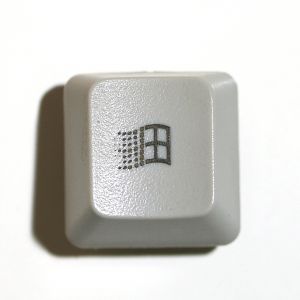
Uses For The Windows Key

Uses For The Windows Key

Not immediately the most useful key on any Windows keyboard, the Windows Key generally creates more annoyance than good.

But it is there, and can be useful. Although, barely.

W = Windows Key

W: Opens Start Menu

W+ E: Opens up Windows Explorer

W+ R: Opens the Run command.

W+ U: Opens Utility Manager

W+ L: Log Off

W+ F: Search files on your computer


W+ D: Show Desktop [will switch back and forth from all minimized and back again]

W+ F1: Help Menu

W+ Pause/Break: System Properties

W + Ctrl + Tab: Cycles through Tabs in your current app [eg. Firefox's last focused tabs]

Useless:

W+ Tab: Cycles Through Buttons in Taskbar

W+ M: Minimize all open windows.

W+ Shift+M: Maximize the windows you had open before minimizing

W+B: Set focus to the first System Tray Icon [which is the arrow if you enable the Hide Inactive Icons option]

CTRL+W +F: Search for computers

Microsoft Natural Keyboard with IntelliType software installed

[Can't be verified by me. Discovered at SimpleHelp.net]

W +P: Starts Print Manager

W +C: Opens Control Panel

W +V: Starts Clipboard

W +K: Opens Keyboard Properties dialog box

W +I: Opens Mouse Properties dialog box

W +A: Starts Accessibility Options (if installed)

W +Spacebar: Displays the list of Microsoft IntelliType shortcut keys

W +S: Toggles CAPS LOCK on and off

To disable the Windows key:

  • 1. Click Start, click Run, type regedt32, and then click OK.
  • 2. On the Windows menu, click HKEY_LOCAL_ MACHINE on Local Machine.
  • 3. Click the System\CurrentControlSet\Control folder, and then double-click the Keyboard Layout folder.
  • 4. On the Edit menu, click Add Value, type in Scancode Map, click REG_BINARY as the Data Type, and then click OK.
  • 5. Type 00000000000000000300000000005BE000005CE000000000 in the Data field, and then click OK.
  • 6. Close the Registry Editor and restart the computer.

How To Disable the keyboard Windows Key – [Microsoft]

Know of any decent uses? I was going to just try out every key in conjunction with the Windows Key, but I’ve got places to be…

WRITER'S BIOGRAPHY

Craig Childs

ARTICLES BY THIS WRITER »
Don't want to miss any related posts like there? Subscribe to our feed!

Comments

  • Kevin says on May 29th, 2007 at 10:32 am

    It may have to do with how your copy of Windows is setup, but WIN+L locks my Windows XP. I am setup with Fast User Switching OFF.

    Kevin
    http://technogeek.org/

  • Stu says on May 29th, 2007 at 11:04 am

    I disagree that W+M is useless – many applications leave open dialogue boxes that can get lost easily and don’t show on the taskbar – if these are “behind” the application window then W+D will dismiss the app and the dialogue, W+M will leave the dialogue box open. Almost every tool Oracle has written in Java displays this behaviour.

  • Bill Loytty says on May 29th, 2007 at 11:37 am

    Windows + L locks the computer, it does not log you off (at least on XP and Vista)

  • skoh-fley says on May 29th, 2007 at 11:56 am

    “W + Ctrl + Tab: Cycles through Tabs in your current app [eg. Firefox’s last focused tabs]”

    Actually, that’s just Ctrl + Tab; no Windows key there.

  • doodge says on May 29th, 2007 at 12:59 pm

    Win+L is not Log Off. It is “Lock this computer”… and it is big difference…

    IMHO poor article.

    Tip: Learn before you write about something…

  • Bryan Price says on May 29th, 2007 at 3:07 pm

    Having a Intellitype keyboard with software installed, I have to say Nope! to the extra shortcuts. W+extra key just gives you that key. And I’m fairly certain that I’m using the latest.

  • Steve Feinstein says on May 29th, 2007 at 4:39 pm

    If you should find yourself someday with a mouse that doesn’t work, and no time to replace it, while still needing to get work done. You’ll find that none of them are at all useless. That windows-b one will come in quite handy when mouseless.

  • Mike Warner says on May 29th, 2007 at 5:46 pm

    ‘“W + Ctrl + Tab: Cycles through Tabs in your current app [eg. Firefox’s last focused tabs]”

    Actually, that’s just Ctrl + Tab; no Windows key there.’

    Also Ctrl+Shift+Tab to reverse direction, FWIW.

  • Craig Childs says on May 29th, 2007 at 9:53 pm

    Stu, that’s a good point. It seemed redundant to me with the Show Desktop option. In hindsight I’ve encountered situations that W+M would have been useful.

    Bill, Windows documents W+L as locking the keyboard, but for some it logs off. This occurred with me. Do you know how to change this?

    Steve, sounds fair enough. For anyone wanting to use the mouse as little as possible, W+B would be suitable.

    Mike, I thought that was an interesting inclusion as well, since Ctrl+Tab cycles through tabs anyway. But does this occur with all tabbed apps?

  • John says on May 30th, 2007 at 3:13 am

    W + L is lock computer, however if you press the windows key to bring up the start menu, and THEN press L, it brings up the log off menu.

  • Laurent says on May 30th, 2007 at 7:43 am

    Do you know ‘Winkey’, a free utility to add more shortcuts to the Windows key?

  • Sam Hasler says on June 1st, 2007 at 12:53 pm

    “Useless:

    W+ Tab: Cycles Through Buttons in Taskbar”

    Not entirely useless, because W+ Shift+Tab cycles in the opposite direction and _always_ starts at the last button. So if you always start the same application first (e.g., your email client or browser) pressing:
    W+ Shift+Tab, W+ Tab, Return (or Space)
    will take you to that application straight away without leaving the keyboard.

  • Devindra says on June 1st, 2007 at 1:31 pm

    The Windows key has become more useful in Vista:
    - If you press the Windows key and start typing, it begins a live search for items within your start menu. It’s basically a much simplified version of what “Quicksilver” does on Macs. I’ve found it immensely useful.
    - Windows + Tab is more useful: It activates that 3D windows selection, aka the prettier Alt + Tab.

  • MrWatt says on June 5th, 2007 at 2:47 pm

    Actually I found also a video about some of those shortcuts.

    http://www.metacafe.com/watch/.....te_useful/

    Sometimes this key comes in handy, sometimes it doesn’t. Either way the shortcuts are pretty cool.

  • Jester says on June 11th, 2007 at 5:19 pm

    I completely disagree with the sentiment expressed in this article. IMHO, if you want to be a truly efficient user, then the time you spend with your hand on a mouse should be kept to an absolute minimum. Think about how long it takes you to get to your files in explorer when using a mouse. Or how about closing all of those open windows to get to your desktop – even if you use the “show desktop” icon in the quicklaunch (which I rarely see anyone do) it will only take a fraction of the time to hit the keys. Keyboard shortcuts are our friends when it comes to being efficient and more productive – this is one of the lessons forgotten after the advent of the mouse.

  • eonnaxjkwn says on July 31st, 2007 at 10:21 pm

    Hello! Good Site! Thanks you! deautjfmwaobh

Post your comment

Continue your discussions at Lifehack Community.

Get your own Avatars at Gravatars.
Three FREE Audiobooks RISK-FREE from Audible
Recent Writers SEE MORE
Latest Poll

Do you like the new design?

View Results

Loading ... Loading ...